
Search Focus Are A SEO Company That Can Increase Your Online Sales Revenue Through Driving Qualified Targeted Visitors To Your Website
How to Reduce Bounce Rate: Technical Fixes That Keep More Visitors on Your Website
- Home
- /
- Search Engine Optimisation
- /
- How to Reduce Bounce...
Attracting more visitors is only useful when the right people stay long enough to understand what your business offers.
As a freelance SEO consultant, I regularly come across websites that rank reasonably well and receive a steady flow of traffic but generate far fewer enquiries than expected. In many cases, the problem is not the amount of traffic. It is what happens immediately after somebody arrives.
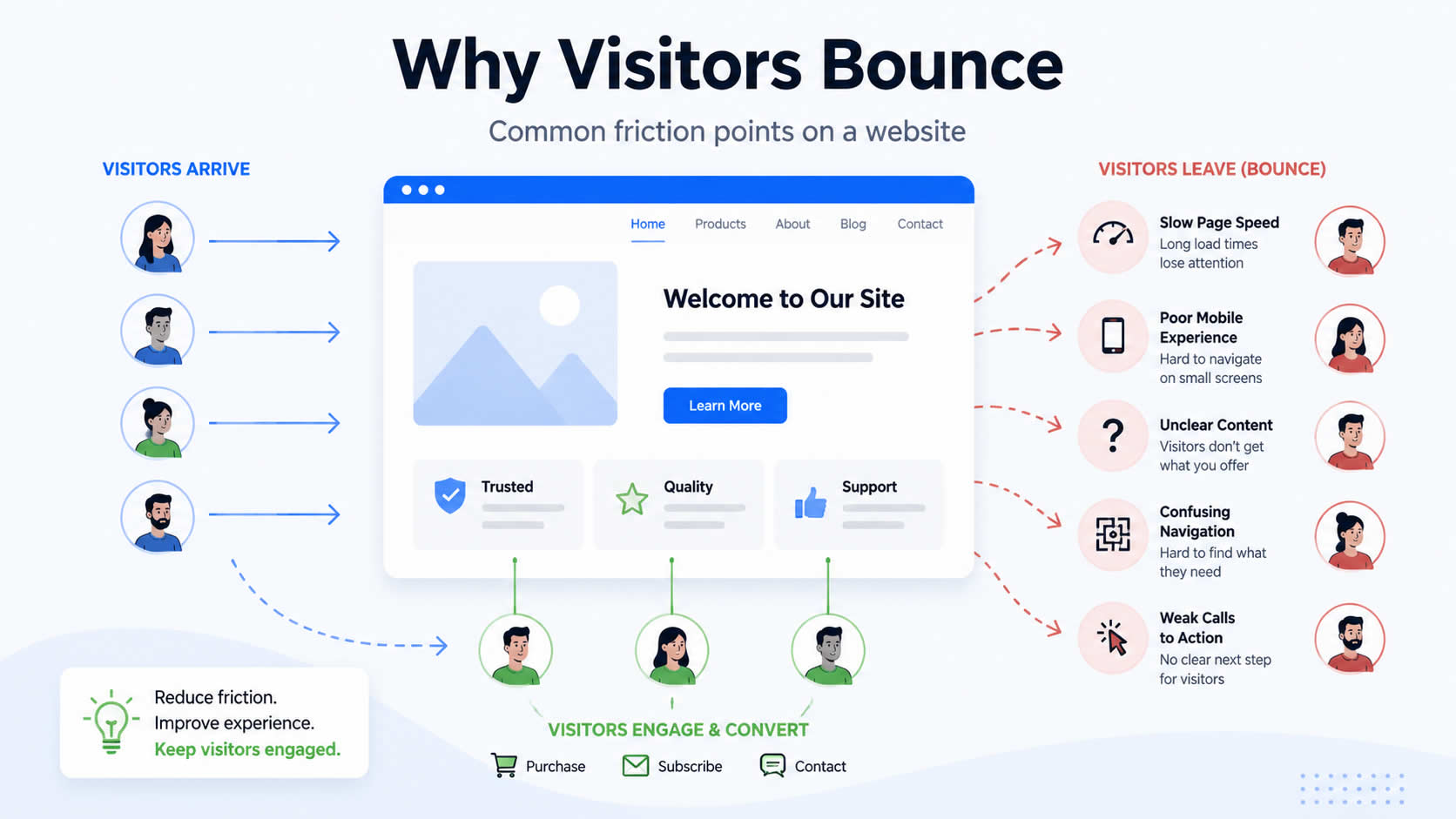
Visitors might leave because the page loads slowly, the content does not match their search, the website is difficult to use on a phone or the next step is unclear.
A high bounce rate can help highlight these problems, but the percentage should never be viewed in isolation. Before changing a website, I prefer to establish what the figure represents, where the bounces are occurring and whether Google Analytics is recording the visits correctly.
Reducing bounce rate is not about artificially keeping people on a page. It is about removing the technical, content and usability problems that make potential customers leave.
What Is Bounce Rate?
Bounce rate is the percentage of sessions that Google Analytics 4 does not classify as engaged sessions.
GA4 considers a session engaged when it meets at least one of the following conditions:
- Lasts Longer Than 10 Seconds
- Includes At Least One Key Event
- Includes Two Or More Page Or Screen Views
Bounce rate is the inverse of engagement rate.
Bounce rate = 100% − engagement rate
For example, if a website has an engagement rate of 64%, its bounce rate is 36%.
This is different from the definition previously used in Universal Analytics. GA4 is based on engaged sessions rather than simply counting visits where somebody viewed one page without triggering another interaction.
A person can now land on a page, read it for more than ten seconds and leave without visiting another URL. GA4 may still classify that as an engaged session.
This makes the modern bounce rate more useful in some situations, but it also means tracking errors can significantly distort the result.
A Bounce Is Not Always a Failed Visit
A high bounce rate does not automatically mean a page is performing badly.
Someone may search for your telephone number, find it immediately and call you. Another visitor might read a blog post, get the exact answer they wanted and leave. A customer could visit your contact page simply to check an address or opening time.
Those visitors may not browse several pages, but the website could still have completed its purpose.
The meaning of a bounce depends heavily on the type of page.
| Page Type | What a Successful Visit Might Involve |
|---|---|
| Service Page | Reading the service details and requesting a quotation |
| Blog Post | Finding a useful answer and possibly reading related content |
| Contact Page | Calling, emailing or checking the business address |
| Ecommerce Category | Viewing products and moving towards a purchase |
| Campaign Landing Page | Completing a form or clicking a call button |
| Help Article | Solving a problem without needing another page |
I would therefore avoid measuring every page against one generic bounce-rate benchmark.
A bounce rate of 65% could indicate a serious problem on an important service page. The same figure might be completely understandable on an informational article that answers one narrow question.
Compare pages that perform similar jobs. Service pages should be compared with other service pages, while blog posts should be compared with articles targeting similar types of search.
Does Bounce Rate Affect SEO?
The bounce rate shown in your GA4 account should not be treated as a direct Google ranking factor.
That does not mean the reasons behind a high bounce rate are unimportant.
A page may have poor engagement because it is slow, difficult to use, badly structured or poorly matched to the search query. Those weaknesses can also affect organic performance, enquiries and customer confidence.
Google’s page-experience guidance asks website owners to consider factors such as Core Web Vitals, mobile usability, HTTPS and intrusive interstitials. Google also makes it clear that a good page-experience score alone does not guarantee high rankings. Content still needs to be relevant and useful.
A high bounce rate may therefore be warning you about problems such as:
- Poor Search-Intent Alignment
- Slow Page Loading
- Weak Mobile Usability
- Intrusive Pop-Ups
- Unhelpful Content
- Confusing Navigation
- Misleading Search Titles
- Broken Forms Or Page Elements
- Irrelevant Traffic
- Incorrect Analytics Tracking
I tend to view bounce rate as a warning light rather than a diagnosis. It tells me where to investigate, but it does not explain what is wrong.
How to Find Bounce Rate in GA4
Bounce rate is not always displayed in GA4’s standard reports.
A useful place to start is the Landing page report, which shows the first page somebody viewed during a session.
Depending on how your GA4 property is configured, this can normally be found under:
Reports → Engagement → Landing page
You can customise the report and add metrics such as:
- Sessions
- Engaged Sessions
- Engagement Rate
- Bounce Rate
- Average Engagement Time Per Session
- Key Events
- Session Key Event Rate
- Views Per Session
The Landing page report is more useful than a site-wide average because it shows the experience people receive when they first enter the website.
Rather than looking at one overall bounce rate, I recommend finding the specific pages, devices and traffic sources responsible for the weaker performance.
Segment Bounce Rate Before Changing the Website
A site-wide figure rarely provides enough information to make a sensible decision.
Before changing content or design, break the data down into meaningful segments.
Landing Page
Look for commercially important pages with a noticeably higher bounce rate than comparable pages.
Do not compare a contact page with a long-form guide. Compare service pages with service pages, product categories with product categories and informational articles with similar articles.
A single page with a serious issue can be hidden by an otherwise healthy site-wide average.
Traffic Source and Medium
A page may perform well for organic search traffic but poorly for visitors arriving through paid social media.
That does not necessarily mean the page itself is universally poor. The advertisement, audience targeting or message used before the click may be creating the mismatch.
Compare sources such as:
- Google Organic
- Google Ads
- Bing Organic
- Email Campaigns
- Referral Websites
- Direct Traffic
A page promoting emergency services might perform well for urgent Google searches but poorly when shown to a broad, low-intent social audience.
Device Category
Mobile and desktop visitors often behave very differently.
If the mobile bounce rate is considerably higher, inspect the page on a real phone. The problem may involve oversized headings, obstructive banners, slow JavaScript, awkward forms or buttons that are difficult to tap.
Do not assume a website is mobile-friendly simply because the layout becomes narrower.
Browser and Operating System
An unusually high bounce rate from one browser can indicate a compatibility problem.
Forms, navigation menus, sliders, calculators and payment processes should be tested across browsers including:
- Chrome
- Safari
- Edge
- Firefox
A page may work perfectly on your own Windows computer but fail for customers using Safari on an iPhone.
Geographic Location
Location data can expose irrelevant or incorrectly targeted traffic.
For example, a service page targeting Wigan may perform poorly if a large proportion of its visits come from outside the UK.
Geographic reports can also help identify bot activity, referral spam or an advertising campaign targeting the wrong region.
New and Returning Visitors
New visitors generally require more explanation and reassurance.
Returning visitors may already know the business and move directly towards a contact form, product or account area.
Combining both groups can hide useful patterns, particularly on websites with repeat customers.
Check Your Analytics Before Redesigning the Page
A suspiciously high or low bounce rate can be caused by the tracking setup rather than genuine visitor behaviour.
Before recommending major website changes, I check whether GA4 is recording page views, events and key events correctly.
Check for Duplicate Page Views
GA4 classifies a session as engaged when it contains two or more page or screen views.
If a page-view event fires twice when the page loads, GA4 may turn a genuine bounce into an engaged session.
This can happen when:
- GA4 Is Installed Through Both A Plugin And Google Tag Manager
- A Google Tag Is Hard-Coded And Also Added Through The Theme
- Two Tag Manager Containers Are Present
- Automatic And Manual Page-View Tracking Overlap
- A Single-Page Application Sends Duplicate Virtual Page Views
Use Google Tag Assistant, Google Tag Manager Preview and GA4 DebugView to confirm that only one page_view event is sent for each genuine page load.
If every session appears engaged and the bounce rate is close to zero, duplicate tracking should be one of the first things you investigate.
Review Which Events Are Marked as Key Events
Any session containing a key event counts as engaged.
An incorrectly configured key event can therefore make the bounce rate appear much lower than it really is.
Avoid marking common events as key events simply because they indicate some form of activity.
These would normally be unsuitable:
page_viewsession_start- Basic Scroll Events
- Generic Menu Clicks
- Every Outbound Link
- Automatic Form Interactions
For a lead-generation website, suitable key events may include:
- A Completed Enquiry Form
- A Confirmed Appointment
- A Qualified Telephone Click
- A Completed Registration
- A Purchase
Marking every minor interaction as a key event may improve the reported engagement rate, but it makes the data far less useful.
Exclude Internal Traffic
Your own visits can affect website data more than expected.
Business owners, staff members, web developers and marketing providers often visit several pages, repeatedly reload content and test forms. This can create unusually high engagement.
The opposite can also happen. Someone checking a minor website edit may open one page, inspect it briefly and leave, creating repeated low-engagement sessions.
GA4 allows internal traffic to be identified and filtered. Test a filter before activating it so you can confirm it is identifying the correct visits.
Be careful when applying permanent filters. Once incoming data has been excluded, it cannot simply be restored to the standard reports.
Test Your Cookie Consent Configuration
Most UK business websites use some form of cookie banner or consent-management platform.
An incorrect implementation can cause analytics events to begin late, fire inconsistently or disappear completely.
Google Consent Mode controls how Google tags behave based on the consent choices made by the visitor. The default state should be applied before the relevant tags fire and then updated after the visitor makes a choice.
Test the website when:
- The Visitor Accepts All Cookies
- The Visitor Rejects Analytics Cookies
- The Visitor Changes Their Choice
- The Banner Loads Slowly
- The Visitor Navigates Before Choosing
- The Visitor Returns On A Later Date
Consent requirements depend on how your website collects and processes information. Analytics accuracy should never take priority over lawful data collection.
Understand GA4 Scroll Tracking
GA4’s automatic scroll event does not report every small movement down a page.
Enhanced Measurement records the standard scroll event when a visitor reaches approximately 90% of the page for the first time.
It does not automatically tell you whether somebody reached 25%, 50% or 75%.
For long service pages and detailed blog posts, I often find intermediate scroll events more useful because they show where readers begin to lose interest.
A practical event setup might include:
| Event | Purpose | Key Event? |
|---|---|---|
scroll_25 | Indicates early content progression | No |
scroll_50 | Indicates meaningful content consumption | No |
scroll_75 | Indicates deep reading | No |
scroll_90 | Indicates near-completion | No |
click_to_call | Measures telephone-number clicks | Usually |
form_start | Measures the beginning of an enquiry | No |
generate_lead | Measures a completed enquiry | Yes |
book_appointment | Measures a completed booking | Yes |
Avoid marking every scroll event as a key event. That would lower the bounce rate without proving that the page generated any useful business outcome.
How to Reduce Bounce Rate
Once the tracking has been checked, the next step is finding out why people are leaving.
There is no single fix that works on every website. The right improvement depends on the page, audience, device, traffic source and intended action.
Match the Page to Search Intent
Search intent describes what somebody is trying to achieve when they enter a query.
A page will struggle when it does not meet that expectation.
Someone searching for “SEO prices UK” is likely to want costs, pricing models and realistic examples. Sending that visitor to a general homepage forces them to search for the answer.
Somebody searching for “emergency plumber Wigan” probably wants immediate availability, service coverage and a telephone number. A lengthy history of the company should not appear before the urgent information.
How I Would Diagnose an Intent Mismatch
Start by reviewing the search queries generating impressions and clicks in Google Search Console.
Compare those searches with:
- The SEO Title
- The Main Heading
- The Opening Paragraph
- The Visible Above-The-Fold Content
- The Main Call To Action
- The Information Actually Provided
A page may have started ranking for a broader or slightly different query than the one originally targeted.
Fastest Solution
Rewrite the opening section so it confirms:
- What The Page Offers
- Who The Service Is For
- Where The Service Is Available
- What The Visitor Should Do Next
Deeper Solution
Rebuild the page around the dominant intent.
Trying to target prices, tutorials, reviews, local services and product comparisons with one page can result in content that satisfies none of those searches properly.
Make the Main Offer Clear Above the Fold
The above-the-fold area is the section visible before the visitor scrolls.
A business website should not force people to work out what the company does.
The opening screen should usually contain:
- A Clear Main Heading
- A Short Explanation
- A Relevant Image Or Visual
- A Primary Call To Action
- Important Trust Information
- Location Or Coverage Details Where Relevant
Avoid vague headings such as:
Transforming Possibilities Into Digital Success
A clearer alternative would be:
SEO Services for Businesses in Wigan
The second heading immediately confirms the service and location.
Warning Signs
The opening section may be contributing to bounces when:
- The Main Heading Does Not Name The Service
- A Slider Hides Important Information
- Branding Takes Priority Over The Offer
- The Call To Action Appears Too Far Down The Page
- Mobile Visitors Initially See Only An Image
- Text Is Difficult To Read Against The Background
- The Heading Wraps Awkwardly On Smaller Screens
Test the page at several mobile widths. I normally check narrow screens at around 320 pixels as well as more common widths around 375 and 430 pixels.
Make sure the main heading, explanation and call to action remain visible and usable.
Improve Largest Contentful Paint
Largest Contentful Paint measures how quickly the main visible content appears.
For a good user experience, Google recommends an LCP of 2.5 seconds or less, measured at the 75th percentile of page visits.
The LCP element is often:
- A Hero Image
- A Large Heading
- A Featured Image
- A Banner
- A Large Text Block
- A Background Image
Common Causes of Poor LCP
- Slow Hosting
- An Unoptimised Hero Image
- Render-Blocking CSS
- Excessive JavaScript
- Too Many Web Fonts
- Slow Database Queries
- A Bloated WordPress Theme
- Page-Builder Assets
- Third-Party Scripts
- Missing Page Caching
Fastest Solution
Optimise the main image and remove unnecessary resources from the opening screen.
Avoid loading a 2,000-pixel-wide image into a container that displays at 400 pixels on a phone.
Technical Fixes
- Do Not Lazy-Load The Main LCP Image
- Add Accurate Width And Height Attributes
- Preload The Important Hero Image Where Appropriate
- Generate Responsive
srcsetSizes - Inline Essential Above-The-Fold CSS
- Defer Non-Critical JavaScript
- Remove Unused Theme And Plugin Assets
- Use Full-Page Caching
- Consider A Content Delivery Network
- Improve Initial Server Response Time
- Host Fonts Locally Where Appropriate
- Reduce The Number Of Font Files
Do not preload every large resource. Excessive preloading creates competition for bandwidth and can delay the file you are actually trying to prioritise.
Improve Interaction to Next Paint
Interaction to Next Paint measures how quickly a page responds when somebody clicks, taps or uses the keyboard.
Google recommends an INP of 200 milliseconds or less for a good result.
A page may appear fully loaded but still feel slow when:
- The Mobile Menu Opens Late
- Buttons Do Not Respond Immediately
- Typing Into A Form Feels Delayed
- Accordions Freeze Before Opening
- Product Filters Take Too Long To Update
- Cookie Banners Block Interaction
- Calculators Or Sliders Stutter
The browser’s main thread is often being occupied by large JavaScript tasks.
This is common on WordPress websites using several page-builder extensions, review widgets, tracking scripts, animation libraries and live-chat tools.
Technical Fixes
- Remove Unused JavaScript
- Delay Non-Essential Third-Party Scripts
- Break Long JavaScript Tasks Into Smaller Tasks
- Simplify Large DOM Structures
- Reduce Scroll And Resize Listeners
- Simplify Complex Mobile Menus
- Load Chat Widgets After Interaction
- Remove Duplicate Plugin Features
- Use Passive Event Listeners Where Appropriate
- Avoid Loading Tools On Pages That Do Not Need Them
A booking system used only on the contact page should not load across every service page and blog post.
Prevent Cumulative Layout Shift
Cumulative Layout Shift measures unexpected movement while the page loads.
Google recommends a CLS score of 0.1 or less, measured at the 75th percentile of page loads.
Unexpected movement is particularly frustrating on mobile. A visitor may attempt to press a button just as an image, advert or banner pushes it elsewhere.
Common Causes
- Images Without Dimensions
- Adverts Without Reserved Space
- Late-Loading Fonts
- Banners Inserted Above Existing Content
- Review Widgets Loading Late
- Sticky Headers Changing Height
- Cookie Notices Expanding After Load
- Animations That Change The Layout
Fastest Solution
Reserve space before each element loads.
Use image width and height attributes or CSS aspect-ratio for responsive media.
Font Improvements
A web font can cause text to change size after the fallback font has already appeared.
Reduce this effect by:
- Using A Similar Fallback Font
- Preloading Only Essential Font Files
- Reducing The Number Of Font Weights
- Applying
font-displayAppropriately - Removing Large Icon-Font Libraries
Improve the Mobile Experience
Mobile optimisation involves more than stacking desktop columns vertically.
Mobile visitors may be using a slower connection, smaller screen and touch controls while distracted or away from a desk.
I always recommend testing important pages on a real phone rather than relying entirely on a desktop responsive preview.
Common Mobile Problems
- Buttons Are Too Close Together
- Telephone Numbers Are Not Clickable
- Text Is Too Small
- Paragraphs Are Too Wide
- Sticky Elements Cover The Content
- Tables Overflow The Screen
- Forms Require Too Much Typing
- Pop-Ups Are Difficult To Close
- Images Push Important Information Down
- Menus Contain Too Many Nested Levels
Practical Fixes
Use a visible click-to-call button on pages where telephone enquiries matter.
Set the correct HTML input types so mobile visitors receive the appropriate keyboard:
<input type="tel" name="telephone">
<input type="email" name="email">
Allow enough space around buttons and text links.
For large comparison tables, consider presenting the information as stacked cards on smaller screens rather than forcing horizontal scrolling.
Remove Intrusive Pop-Ups and Overlays
Visitors should be able to access the main content without closing several interruptions.
Common examples include:
- Newsletter Pop-Ups
- Location Selectors
- Live-Chat Invitations
- Push-Notification Prompts
- Discount Wheels
- Full-Screen Cookie Notices
- App-Download Banners
- Automatic Video Overlays
Delay non-essential prompts until the visitor has shown some interest.
A newsletter form could appear after a meaningful scroll depth instead of opening immediately when the visitor arrives.
The close button should be clearly visible and easy to press on a touchscreen.
Make Search Titles Match the Page
A misleading search result can attract more clicks while producing worse engagement.
If the title promises prices, include clear pricing information.
If it promises a calculator, make the calculator easy to find.
If it promises a step-by-step tutorial, do not make the visitor read through a lengthy sales pitch before reaching the instructions.
Review:
- The SEO Title
- The Meta Description
- The URL
- The Main Heading
- The Opening Content
- The Actual Purpose Of The Page
These elements do not need to use identical wording, but they should all make the same basic promise.
More clicks are not useful when visitors immediately realise they have reached the wrong page.
Improve the Content Structure
Dense and poorly organised content can make a useful page look difficult.
Most visitors scan a page before deciding whether to read it properly. Clear headings allow them to find the section that matters to them.
Use:
- Descriptive Headings
- Shorter Paragraphs
- Comparison Tables
- Numbered Processes
- Highlighted Definitions
- Relevant Images
- Practical Examples
- Clear Next Steps
Avoid inserting a heading after every sentence. Too many sections can make the content feel fragmented and mechanical.
The opening should also reach the subject quickly.
A page targeting “how much does SEO cost?” should begin discussing costs near the top. It should not start with several paragraphs explaining the history of search engines.
Add Useful Internal Links
A page with no logical next step makes it easier for visitors to leave.
Internal links should help somebody continue their task rather than being inserted purely for SEO.
A service page might link to:
- Pricing Information
- Relevant Case Studies
- Areas Covered
- A Related Service
- The Contact Page
- A Detailed Buying Guide
A blog post might link to:
- A More Advanced Tutorial
- A Supporting Definition
- A Relevant Calculator
- A Service That Solves The Problem
- A Closely Related Article
Use descriptive anchor text.
“View my local SEO services” tells the reader what will happen. “Click here” does not.
Links should be placed where they naturally support the surrounding content rather than being grouped into a large block of unrelated recommendations.
Simplify the Navigation
Navigation should help visitors predict where each link will take them.
Avoid vague menu labels such as:
- Solutions
- Discover
- Experience
- Resources Plus
- What We Do
Clearer alternatives might include:
- SEO Services
- Web Design
- Prices
- Case Studies
- About
- Contact
Large dropdown menus can overwhelm visitors, particularly on mobile.
Group related services into sensible categories and avoid giving every page on the website equal prominence.
The most important commercial routes should be easy to reach from any main page.
Reduce Form Friction
A visitor may remain on a page long enough to count as engaged but still abandon the enquiry form.
Bounce rate should therefore be analysed alongside form-start and completion data.
Common Causes of Form Abandonment
- Too Many Required Fields
- Unclear Error Messages
- A Broken Submit Button
- No Confirmation Message
- Poor Mobile Input Design
- Requests For Unnecessary Information
- An Unclear Privacy Statement
- Hidden Costs Or Commitments
- Slow Form Processing
- CAPTCHA Problems
Fastest Solution
Remove any field that is not needed for the initial conversation.
A basic service enquiry may only require:
- Name
- Contact Details
- Service Required
- Brief Message
Additional information can be collected after the enquiry has been received.
Track events such as:
form_startform_errorform_submitgenerate_lead
A high number of form starts combined with very few completed leads points towards form friction rather than a traffic problem.
Add Trust Where Decisions Are Made
Visitors may understand the service but still hesitate because the page does not provide enough reassurance.
Trust information should appear near the point where somebody is being asked to contact, book or buy.
Depending on the business, useful evidence can include:
- Genuine Customer Reviews
- Relevant Qualifications
- Accreditations
- Insurance Information
- Clear Contact Details
- Defined Service Areas
- Real Project Photographs
- Named Team Members
- Pricing Information
- Guarantees
- Case Studies
- Privacy And Returns Information
Avoid broad statements such as “the UK’s leading provider” unless the claim can be supported.
Specific evidence is usually more convincing than generic claims.
Instead of simply saying that you provide excellent customer service, explain how quickly enquiries are answered, what the process involves and who the customer will speak to.
Fix Broken Pages and JavaScript Errors
Sometimes visitors leave because the page genuinely does not work.
Regularly test for:
- 404 Errors
- Broken Internal Links
- Missing Images
- Failed Stylesheets
- JavaScript Console Errors
- Forms That Do Not Send
- Empty Embedded Content
- Mixed-Content Warnings
- Redirect Loops
- Incorrect Canonical URLs
- Broken Mobile Menus
Check the browser console and network panel for failed files.
One JavaScript error can stop several unrelated features from working, especially when multiple plugins rely on the same libraries.
Important forms should be tested regularly. The absence of customer complaints does not prove that an enquiry form is working.
Control Third-Party Scripts
Third-party tools are often among the slowest resources loaded by a website.
Examples include:
- Live Chat
- Review Platforms
- Heatmaps
- Advertising Pixels
- Social-Media Embeds
- Video Players
- Appointment Systems
- A/B Testing Tools
- Call-Tracking Scripts
- Mapping Tools
For every third-party script, ask:
- Is It Still Being Used?
- Does It Need To Load On Every Page?
- Can It Load After Interaction?
- Is There A Lighter Alternative?
- Does Its Value Justify Its Performance Cost?
A YouTube embed can be replaced with a lightweight thumbnail that loads the player after it is clicked.
An interactive map used only to display an address could potentially be replaced with a static image and a link to directions.
Give Visitors a Clear Next Step
A visitor should not reach the end of a page and wonder what to do.
Use one primary action that matches the purpose of the page.
Examples include:
- Request A Quote
- Call The Business
- Book A Consultation
- View Prices
- Compare Services
- Check Availability
- Buy The Product
- Read The Next Guide
Avoid displaying several equally prominent buttons that compete for attention.
Secondary actions can still be included, but the design should make the primary route obvious.
The wording should also explain what happens next.
“Request a free website review” is more useful than “Submit”.
Measure the Outcome That Matters
Bounce rate should never be the only measure of success.
Use it alongside:
- Engagement Rate
- Average Engagement Time
- Key Event Rate
- Lead Completion Rate
- Scroll Depth
- Telephone Clicks
- Email Clicks
- Product Views
- Add-To-Basket Rate
- Revenue
- Returning Visitors
GA4 measures engagement time while the webpage is in focus or the app is in the foreground. It is therefore different from simply calculating the time between two page views.
A page could achieve a lower bounce rate without generating more business.
For example, adding an unnecessary extra page to an enquiry process could increase page views and lower the bounce rate while making the customer journey less convenient.
The business outcome should always come first. Bounce rate is a diagnostic metric that helps explain the journey.
My Practical Process for Auditing Bounce Rate
When I investigate a page with poor engagement, I work through the problem in stages rather than making immediate design changes.
Stage 1: Validate the Data
Confirm that:
- Each Genuine Page View Fires Once
- Key Events Represent Meaningful Outcomes
- Internal Traffic Is Filtered
- Cookie Consent Behaviour Has Been Tested
- Forms And Telephone Clicks Are Tracked
- Single-Page Navigation Is Measured Correctly
- Bot Or Spam Traffic Has Been Investigated
Stage 2: Find the Weak Segment
Identify:
- The Landing Page
- The Traffic Source
- The Device Category
- The Browser
- The Location
- The Campaign
- The Search Intent
There is little value in redesigning an entire website when the problem only affects one advertising campaign or one mobile browser.
Stage 3: Inspect the Page
Review:
- Above-The-Fold Clarity
- Mobile Layout
- Loading Performance
- Core Web Vitals
- Search-Intent Alignment
- Content Structure
- Calls To Action
- Forms
- Trust Signals
- Internal Links
- Technical Errors
Stage 4: Prioritise the Work
Start with pages that combine:
- High Traffic
- High Commercial Value
- Poor Engagement
- Clear Evidence Of A Problem
- A Realistic Opportunity To Improve
An important service page receiving 2,000 visits a month should normally take priority over an old blog post receiving six visits.
Stage 5: Measure the Result
Record the baseline before making the change.
Compare equivalent periods and account for:
- Seasonality
- Advertising Changes
- Ranking Changes
- New Traffic Sources
- Promotions
- Website Redesigns
- Analytics Changes
Do not judge the result after a handful of visits.
There needs to be enough traffic to distinguish a genuine improvement from ordinary daily variation.
A Lower Bounce Rate Is Not the Final Goal
A lower bounce rate can be a positive sign, but it is not the main objective.
The real aim is to help more of the right visitors complete a useful action.
That might mean:
- Finding An Answer
- Calling The Business
- Requesting A Quote
- Buying A Product
- Booking An Appointment
- Comparing Services
- Returning At A Later Date
My approach is to treat bounce rate as one part of a wider diagnostic process.
First, verify the data. Then identify the affected traffic segment and inspect the page from the visitor’s perspective.
Technical performance, search intent, content quality, mobile usability and analytics tracking all need to work together.
When the right people arrive on a fast, clear and genuinely useful page, the bounce rate will often improve naturally. More importantly, the website becomes better at turning its existing traffic into enquiries and customers.